Programming & Dev Tutorials
How to Run a Large Language Model Locally with Ollama: A Practical Guide
Learn how to install and run a Large Language Model locally using Ollama. Follow this guide for setup, execution, and interaction with AI models on your machine.
Contents
Installing OllamaRunning Your First ModelHardware Requirements and LimitsCustom Models and Advanced OperationsFrequently Asked QuestionsRunning a Large Language Model (LLM) locally has become increasingly feasible with tools like Ollama, which provides a streamlined way to load, prompt, and manage LLMs on your machine. This guide will walk you through the process of setting up Ollama, running your first model, and understanding the hardware requirements necessary for optimal performance.
Installing Ollama
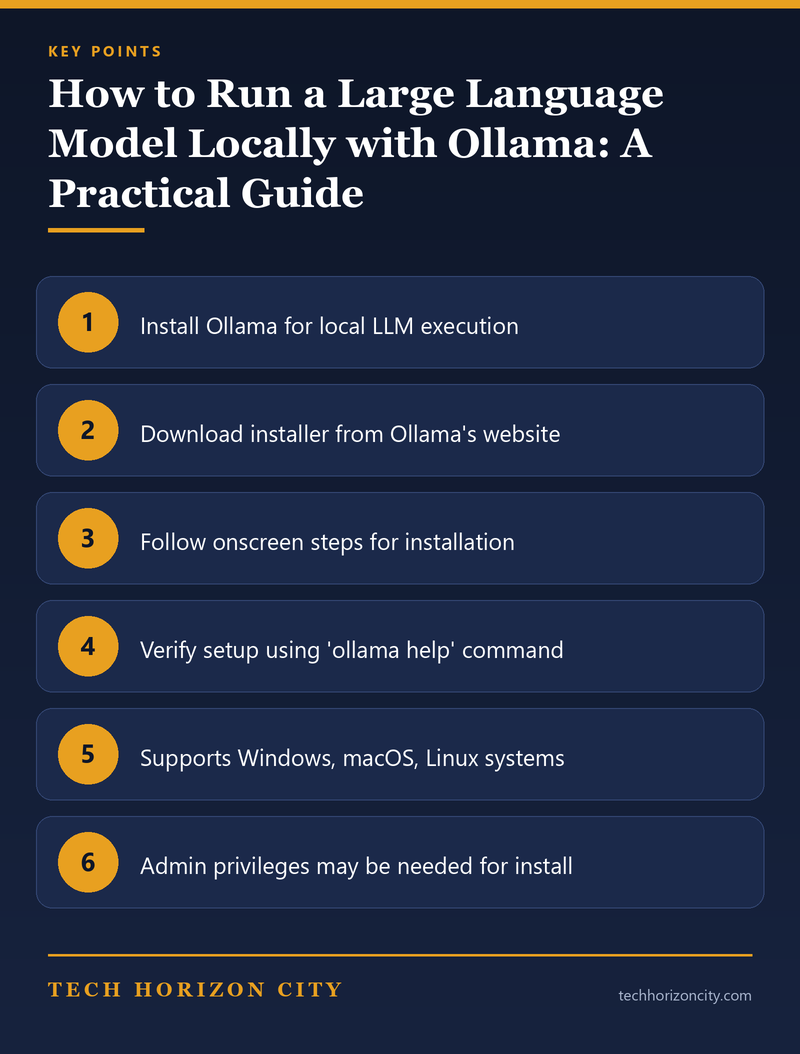
Before you can start running LLMs locally, you’ll need to install Ollama on your system. Ollama is designed to be user-friendly, but it does have specific installation steps you need to follow:
- Download the Installer: Visit the official Ollama website and download the installer compatible with your operating system. Ollama supports Windows, macOS, and several Linux distributions.
- Run the Installer: After downloading, run the installer and follow the on-screen instructions. Ensure you have administrative privileges, as they may be required during installation.
- Verify Installation: Once installed, open a command line terminal and type
ollama helpto verify that Ollama is correctly installed. This command will display a list of available commands, confirming a successful setup.
Running Your First Model
With Ollama installed, you can now run your first LLM. The “gemma3:1b” model is a great starting point for newcomers. Here’s how you can get started:
- Download the Model: Use the command
ollama pull gemma3:1bto download the model to your local machine. This step ensures that the model is ready for execution. - Execute the Model: Run the command
ollama run gemma3:1b. This command loads the model and prompts you with “Send a message (/? for help)”, indicating that the model is ready for input. - Interacting with the Model: Type your queries or prompts directly into the terminal. To exit the session, you can press Ctrl + d or type
/bye.
Ollama also offers additional operations for managing your models, such as deleting, copying, or showing information about a specific model. You can explore these commands using ollama help.
Hardware Requirements and Limits
Running LLMs locally requires a certain level of hardware capability. Here are some considerations to ensure smooth operation:
- Processor: A multi-core processor is ideal for handling the computational demands of LLMs. While Ollama can run on older CPUs, performance may be significantly improved with the latest processor models.
- Memory: LLMs are memory-intensive. At least 16GB of RAM is recommended, although more complex models may require 32GB or more to run efficiently.
- Storage: Ensure you have ample storage space, as models can be quite large. SSDs can also improve load times and overall responsiveness.
- Graphics Card: While not strictly necessary, a dedicated GPU can accelerate model training and inference, significantly enhancing performance.
These requirements may vary based on the specific models you intend to run and their complexity. Always refer to the model documentation for precise hardware specifications.
Custom Models and Advanced Operations
Beyond running pre-existing models, Ollama allows you to create and run custom models. This feature is particularly useful for developers and researchers looking to tailor models to specific needs:
- Create a Custom Model: Use the command
ollama create tech-writer -f Modelfile, where tech-writer is your custom model’s name, and Modelfile is the file containing your model’s configuration. - Run the Custom Model: After creation, execute
ollama run tech-writerto interact with your custom setup.
These advanced operations extend Ollama’s functionality, enabling users to experiment with new architectures or fine-tune existing models.
Ollama provides a robust platform for running LLMs locally, offering both pre-trained models and the flexibility to create custom solutions. By following this guide, you can effectively harness the power of LLMs on your own hardware, opening up new possibilities for AI-driven applications and research.
Frequently Asked Questions
How do I install Ollama to run an LLM locally?
To install Ollama for running an LLM locally, download the installation package from the official Ollama website, follow the setup instructions, and ensure all dependencies are correctly configured on your system.
Can I run the gemma3:1b model locally using Ollama?
Yes, you can run the gemma3:1b model locally using Ollama by downloading the model from the Ollama repository and executing it with the appropriate command-line options.
What are the system requirements for running an LLM with Ollama?
Running an LLM with Ollama typically requires a modern CPU, sufficient RAM (at least 16GB recommended), and a compatible operating system like Windows, macOS, or Linux.
Why should I use Ollama for local AI setup?
Ollama provides a streamlined environment for running large language models locally, offering ease of use, efficient resource management, and compatibility with popular AI frameworks.
Is it possible to run multiple LLMs simultaneously with Ollama?
Yes, it is possible to run multiple LLMs simultaneously with Ollama, provided your system has the necessary resources to handle the computational load.
Ready to advance your skills? Explore our digital learning resources.
Keep reading
Details such as prices, limits and version behaviour change often. Check the provider’s own documentation before relying on them.